
Adding someone to a Facebook Page is not exactly the same as before. Facebook has a newer permission system, which is called Page Access, and many business owners are still wondering about how they can add admin to the Facebook Page.
In 2026, you usually do not manage people only through the old “Admin” or “Moderator” labels. Rather, Facebook uses the terms partial control, full control, task access and Facebook access. Meta’s official Help Center says people with Facebook access with full control can manage other people’s Facebook access or task access for a Page.
In this guide, you will learn how to add users into a Facebook Page safely, what kind of access level to choose and what to do if you don’t have an old admin option.
Before You Add someone to a Facebook Page
When adding a freelancer, digital marketer, agency or business partner to your Facebook Page, there is one thing you must understand:
Facebook Page access controls allows you to control who can manage your Page, content, messages, ads, settings, and even actions at the Page level.
You can have serious issues if you give the wrong person too much access. They may be able to remove other people, change Page settings, connect or remove Instagram, manage ads, or in some cases delete the Page.
So, before you add someone, you need to check two things:
- Do you have full control of the Page?
- Does the person require Facebook access or task access?
Confirm You Have Full Control
You must have Facebook access (full control) in order to add or edit or remove access to someone’s Page. Meta clearly states that people with full control can manage other people’s Facebook access or task access. If you don’t have full or partial access, you might not have the ability to add someone.
How to check your Page access
Go to your Facebook Page settings and look for Page access. If you see that you have full control, you can add or remove people. If you do not have full control, ask the Page owner or another person with full control to update your access.
This is one of the main reasons people search:
- can’t add admin to Facebook Page
- no admin option Facebook Page
- why can’t I add someone to my Facebook Page
In many cases, the problem is not a bug. The person simply does not have enough access.
Decide Whether They Need Facebook Access or Task Access
Facebook offers two main ways to give someone permission to manage a Page:
Facebook Access
People with Facebook access can switch into the Page and manage it directly on Facebook. Meta says Facebook access can come with full control or partial control.
People with Facebook access may be able to manage things like:
- Posts, Stories, and other content
- Messages
- Comments
- Linked accounts like Instagram
- Ads
- Insights
- Events
- Page bans and removals
If someone needs to actively work as the Page, reply to comments, post content, and manage daily Page activity, Facebook access may be suitable.
Task Access
People with task access manage the Page through tools such as Meta Business Suite, Ads Manager, Creator Studio, or Business Manager. Meta says people with task access cannot switch into the Page or manage it directly on Facebook.
Task access is useful for:
- Agencies
- Media buyers
- Content managers
- Community managers
- Ad specialists
- Reporting teams
For most freelancers or agencies, task access is often safer than giving full control.
How to Add Someone to a Facebook Page
Use this method when you want to add someone directly from your Facebook Page.
Step 1: Log in to Facebook
First, log in to the Facebook account that already has full control of the Page.
Do not use a fake account, shared account, or gray account. Meta says Page access cannot be given to a gray account. The person should use a personal Facebook account or create a new valid account first.
Step 2: Switch Into Your Facebook Page
Go to Facebook and switch from your personal profile into your Page.
This is important because Meta notes that you need to switch into your Page to manage Page access.
Step 3: Open Page Setup
After switching into the Page, go to your Page setup.
Depending on your Facebook interface, this may appear as:
- Settings
- Page setup
- Professional dashboard
- New Pages experience settings
Look for the section called Page setup.
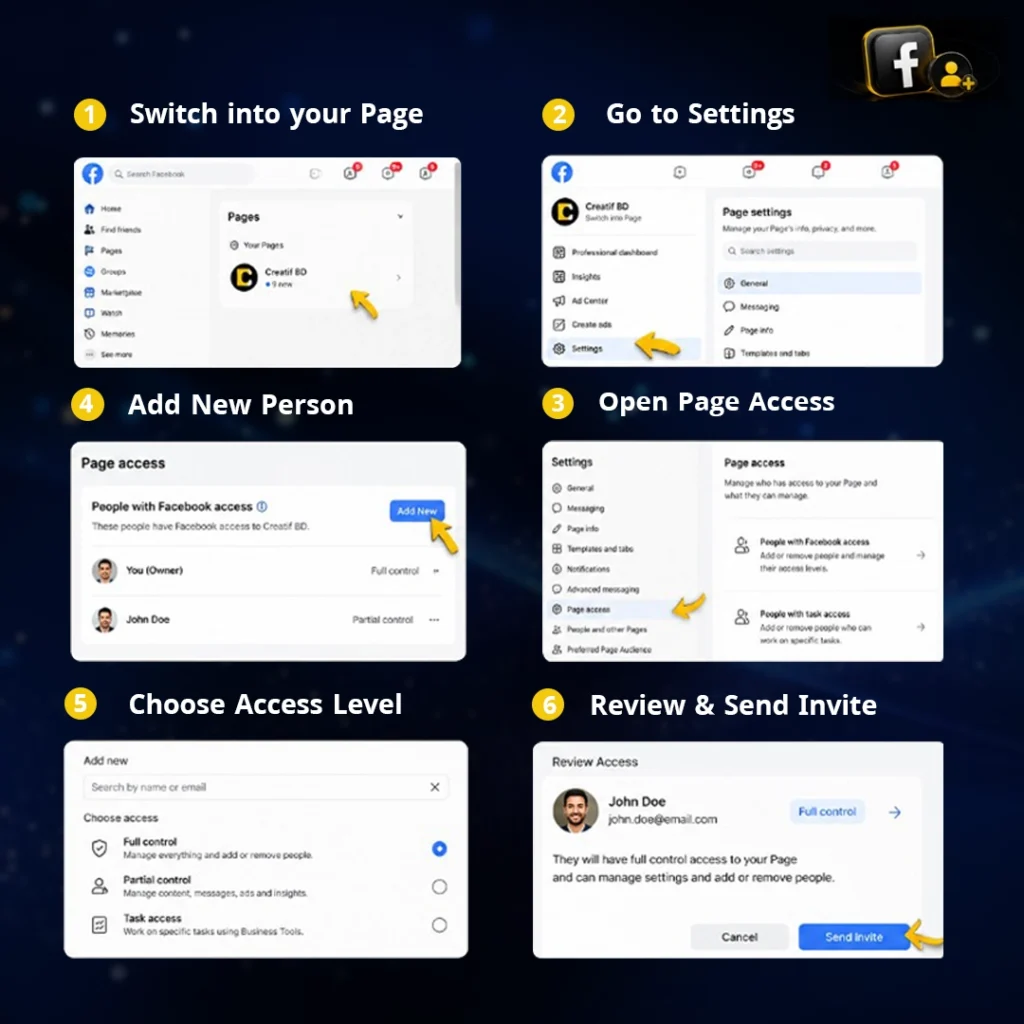
Step 4: Go to Page Access
Inside Page access, you should see options for people who currently have access to the Page.
You may see sections such as:
- People with Facebook access
- People with task access
- Business accounts with access
- Community Managers
The exact layout may change, but the key term to look for is Page access.
Step 5: Add a New Person
Choose the option to add a new person.
Facebook may ask you to search for the person by name or email. Make sure you are adding the correct account.
Before confirming, check:
- Is this the right person?
- Is this their real Facebook account?
- Do they need full control?
- Are they an employee, freelancer, agency, or owner?
Step 6: Choose the Correct Access Level
This is the most important step.
You may need to choose between:
- Facebook access with full control
- Facebook access with partial control
- Task access
Do not give full control to everyone.
Meta warns that giving someone Facebook access with full control gives them the same access as you. That person can give other people access, remove anyone from the Page, including you, or delete the Page.
Step 7: Confirm and Send Access
After selecting the access level, confirm the request.
The person may need to accept the invitation before they can start managing the Page.
How to Add Someone to a Facebook Page in Meta Business Suite
Meta Business Suite is often better when you are working with agencies, ad managers, or external teams.
Use Business Suite when:
- You manage multiple Pages
- You work with a client
- You need to request access to someone else’s Page
- You want to manage access through a business portfolio
- You are giving task-based permissions
Meta has a separate official workflow for requesting access to a Page in Meta Business Suite from a business portfolio.
Basic Meta Business Suite Workflow
The general process is:
- Open Meta Business Suite.
- Go to Settings.
- Find Accounts or Pages.
- Choose the option to add or request access.
- Select the Page.
- Choose the permission level.
- Send or confirm the request.
If you are an agency, it is usually better to request access through Meta Business Suite instead of asking the client to give you full control directly.
This keeps the client’s Page safer and makes future offboarding easier.
Which Access Level Should You Assign?
Not everyone should get the same access level. The safest setup depends on the person’s role.
Business Owner
A business owner should usually have Facebook access with full control.
Why?
Because the owner must be able to manage settings, assign access, remove people, and protect the Page.
Recommended access:
Full control
Digital Marketer
A marketer may need to publish content, reply to comments, check insights, and sometimes manage ads.
Recommended access:
Partial control or selected task access
Give full control only if the staff member is senior and trusted.
Freelancer
A freelancer usually does not need full control.
If they are managing content, messages, or ads, task access may be enough.
Recommended access:
Task access or partial control
Agency
An agency should usually request access through Meta Business Suite.
Recommended access:
Task access through Meta Business Suite
This is better for security because the business owner keeps control while the agency gets the permissions needed to work.
Junior Team Member
A junior employee should not get full control.
Recommended access:
Task access only
Give access only to the specific tasks they need.
Full Control vs Partial Control on Facebook Pages
Understanding full control Facebook Page access is critical.
Full Control
Full control is the highest level of Facebook Page access.
People with full control can manage Page settings and access. Meta says they can also give or remove Facebook access or task access from others.
They may be able to:
- Manage Page settings
- Add or remove people
- Change access levels
- Manage linked accounts
- Remove other admins or managers
- Delete the Page
Only give full control to people you fully trust.
Partial Control
Partial control allows someone to manage many Page activities, but without the highest-level access permissions.
They may help with:
- Content
- Messages
- Comments
- Ads
- Insights
- Events
Partial control is safer for staff members who need to work on the Page but should not control ownership-level settings.
Why You Can’t Add Admin to a Facebook Page
If you searched can’t add admin to Facebook Page, there are a few common reasons.
1. Facebook Uses Page Access Now
The old “Add Admin” wording may not appear the way you expect. Look for Page access instead.
2. You Do Not Have Full Control
If you only have partial access, you may not be able to add someone else.
3. You Are Not Switched Into the Page
Meta says you need to switch into your Page to manage Page access.
4. The Person Has a Gray Account
Facebook does not allow Page access to be given to a gray account. The person should use a personal Facebook account or create a valid new account.
5. The Page Is Connected to a Business Portfolio
If the Page is part of a business portfolio, access levels can work differently. Meta says access levels are different when a Page is part of a business portfolio.
If you are still confused about why Facebook replaced traditional admin and moderator roles, read our detailed explanation of the new Facebook Page Access system.
Common Mistakes When Adding Someone to a Facebook Page
Mistake 1: Giving Full Control to Everyone
This is the biggest mistake.
Full control should be limited to owners or highly trusted senior managers.
Mistake 2: Adding an Agency as a Personal Admin
For agencies, Meta Business Suite access is usually cleaner and safer.
Mistake 3: Not Reviewing Access Regularly
You should check Page access every month or at least every quarter.
Remove access for:
- Former employees
- Old freelancers
- Previous agencies
- People who no longer work on the Page
Mistake 4: Using Shared Facebook Accounts
Do not use one shared Facebook account for multiple team members.
Each person should use their own account. This improves security and accountability.
Mistake 5: Ignoring Two-Factor Authentication
Anyone with important Page access should turn on two-factor authentication.
This helps protect the Page from hacking or unauthorized access.
Security Checklist Before Giving Facebook Page Access

Before you add someone to your Facebook Page, use this checklist:
- Confirm the person’s real Facebook account.
- Check whether they need full control, partial control, or task access.
- Avoid giving full control unless absolutely necessary.
- Use Meta Business Suite for agencies.
- Keep at least two trusted owners with full control.
- Remove old employees or agencies.
- Turn on two-factor authentication.
- Review Page access regularly.
This simple checklist can prevent serious Page ownership and security problems.
Best Access Setup for Small Businesses
For most small businesses, the safest setup is:
| Role | Recommended Access |
| Business owner | Full control |
| Co-owner or senior manager | Full control, only if trusted |
| Social media manager | Partial control |
| Content creator | Task access |
| Ads manager | Task access through Meta Business Suite |
| Agency | Task access or business portfolio access |
| Freelancer | Limited task access |
| Junior staff | Limited task access |
The rule is simple:
Give people only the access they need to do their work. Nothing more.
Need Help Managing Your Facebook Page Access?
Giving the wrong person full control of your Facebook Page can create serious security and ownership risks. Whether you are working with a staff member, freelancer, or marketing agency, setting up the correct Page access is important for protecting your business.
At CreatifBD, we help businesses:
- Set up secure Facebook Page access
- Manage Meta Business Suite permissions
- Handle Facebook and Instagram business assets
- Manage Meta Ads and social media campaigns
- Organize agency and team access safely
If you need professional help managing your Facebook Page, Meta Ads, or Business Suite setup, contact us today and let our team help you build a safer and more organized digital presence.
Sources
This article is based on Meta’s official documentation about Facebook Page access, Business Suite permissions, and Page management systems.
- Meta Help Center – About Facebook Page Access
- Meta Help Center – Give, Edit or Remove Facebook Page Access
- Meta Business Help Center – Request Access to a Facebook Page in Meta Business Suite
- Meta Business Help Center – Manage Access for Pages in a Business Portfolio
- Meta Business Help Center – Business Portfolio Permissions and Asset Access
FAQs
How do I add admin to a Facebook Page in 2026?
To add admin-level access to a Facebook Page in 2026, switch into your Page, go to Page access, add the person, and choose the correct access level. The old “admin” wording may not always appear because Facebook now uses Page Access, full control, partial control, and task access.
What is Facebook Page access?
Facebook Page access is the current system Facebook uses to let trusted people manage a Page. Meta says Page access can include Facebook access or task access, depending on what the person needs to manage.
What is full control on a Facebook Page?
Full control is the highest level of Facebook Page access. A person with full control can manage Page settings, access, and other important Page permissions. Meta warns that people with full control can remove others, including you, or delete the Page.
What is task access on a Facebook Page?
Task access lets someone manage specific Page tasks through tools like Meta Business Suite, Ads Manager, Creator Studio, or Business Manager. Meta says people with task access cannot switch into the Page or manage it directly on Facebook.
Why can’t I add admin to my Facebook Page?
You may not be able to add admin to your Facebook Page because you do not have full control, you are not switched into the Page, the person has a gray account, or your Page access is managed through a business portfolio.
Should I give my agency full control?
Usually, no. For most agencies, task access through Meta Business Suite is safer. Only give full control if the agency is deeply trusted and there is a clear business reason.
Can someone remove me from my own Facebook Page?
Yes, if you give someone Facebook access with full control, they may be able to remove other people from the Page, including you. Meta specifically warns that full control gives the other person the same access as you.